


Editing Video with GPT-6 Astra, Part 1: A Beginner's Guide to Making a 3D Product Ad
Making a product ad usually means working through 3D modeling, animation, lighting, and rendering. If you've never used professional tools, even getting started can feel daunting.
Using GPT-6 Astra inside Codex changes that workflow. Instead of operating an editing or modeling tool feature by feature, you describe the result you want in plain language, and Astra creates or revises the project files for you.
Below is the process, step by step, of turning real product images into a 3D object and then into a short ad video.
Step 1. Collect your product sources in one folder
Astra needs reference material to understand your product's shape. Images from several angles work far better than a single front-facing photo.
- Front, back, and side photos of the product
- Close-ups where the label or package text is legible
- Photos that clearly show the container's material and color
- Reference images for the fruit, props, or backgrounds you'll use in the scene
- References that show the mood or composition you want
Step 2. Connect the folder to a Codex project
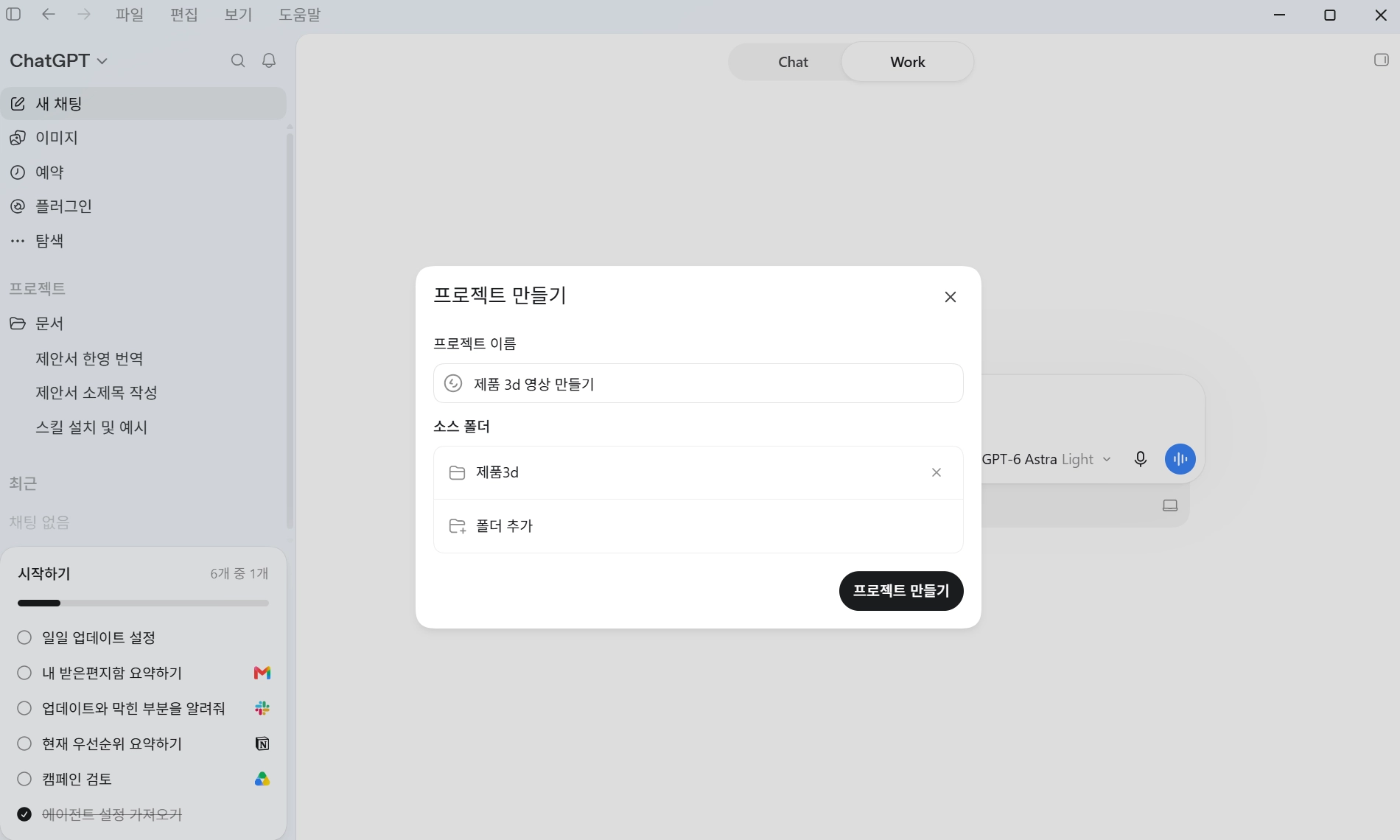
Open the ChatGPT desktop app, select Codex, and create a new project. Then connect the folder you just prepared. With everything organized this way, Astra can easily tell which materials to model from, and every file it generates stays in one place.
Step 3. Check the product's shape from multiple angles
When you start, it's best not to make the scope too broad. If you ask for modeling, background, animation, and sound all at once, it's hard to tell which stage went wrong.
Start with the 3D model of the product alone.
Example prompt:
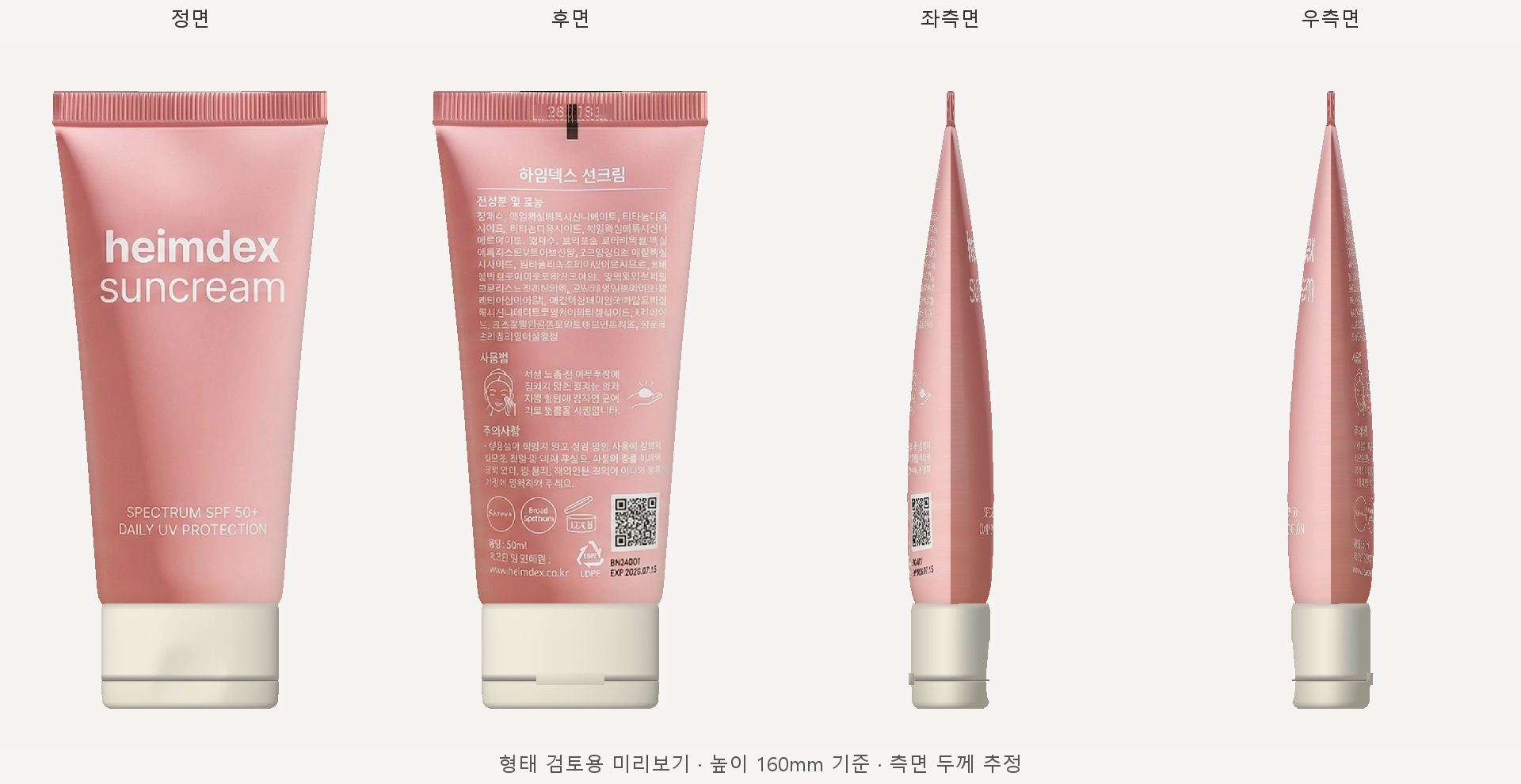
"Using the photos in this folder, build a 3D model of the product. Prioritize getting the container's overall proportions, label placement, and cap shape right. Before the final render, create previews so I can check the front, back, and both sides."
In 3D work, even a small fix costs render time. If you only check the front view before the final render, you may discover too late that the side proportions or label position are off. That's why you ask for front, back, and side previews first. At this stage, getting the shape right matters more than flashy lighting. Check the following:
- Does the aspect ratio match the real product?
- Do the cap, handle, and protrusions look natural in size?
- Are the label's position and area correct?
- Does the silhouette hold up from every direction?
- Does the reference image look pasted onto the surface? (It shouldn't.)
Step 4. Refine materials and text separately
Moving straight from a confirmed shape to the ad scene can look off. What makes a product feel real is its material and the text on its packaging.
When writing prompts, break things down into observable features rather than abstract requests like "make it more realistic."
Example prompt:
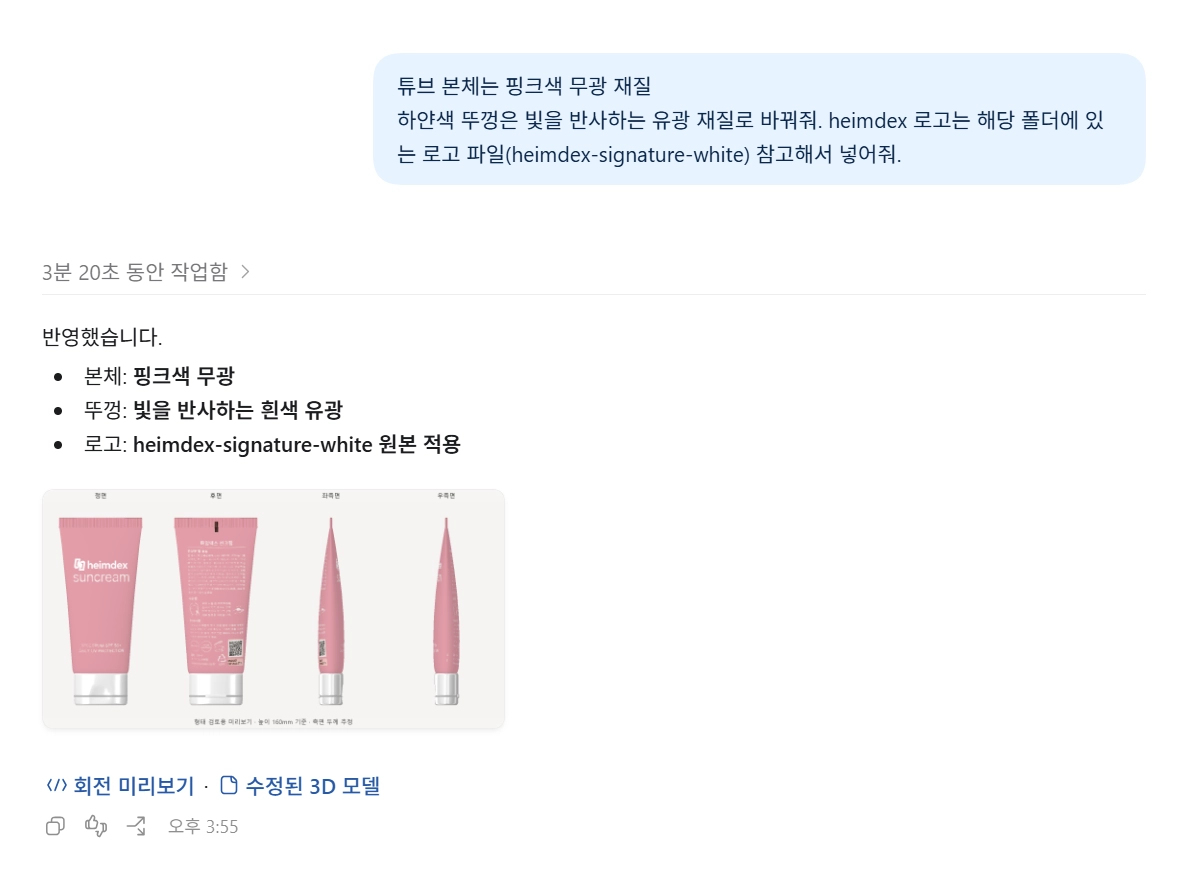
"Make the tube body a matte pink material and the white cap a glossy, light-reflecting material. Match the size and placement of the label text as closely as possible to the reference image. Use the attached logo file for the heimdex logo."
Product names and logos in particular are easily distorted during AI generation. If the text matters in your ad, don't rely on the 3D output alone. Apply the original logo file in the final stage, or have a person check it directly.
Step 5. Describe the ad scene cut by cut
Once the product model is ready, you need to decide what to show and how. If you only ask for "a cool ad video," scene transitions and movement will be left to chance.
You can describe the scenes cut by cut, like this:
- A tomato falls from the sky
- A shot showing both a cross-section of the tomato and its whole form
- When the tomato hits the ground, it spins and transforms into the product
- A front-facing shot of the finished product
- An end card with the product image
Also include the aspect ratio, resolution, and video length in your prompt. If you already know where it will be posted, use that platform's specs. If not, it's more efficient to check a low-resolution test video first.
Step 6. Revise the motion with specifics
It's hard to love the first video you get. What matters is not just saying "this feels off," but saying which motion in which scene should change, and how.
For example:
- "Reduce the tomato's two spins to one."
- "In the last scene, shrink the product slightly to leave more margin."
- "The sound effect doesn't fit the scene, so remove it and re-export only the video."
- "Hold the front view of the product a bit longer."
Rather than sending many edits at once, group related ones together: camera movement first, then the product, then effects and sound. It's safer that way.
☑️Checklist to cut production time
Before modeling
- Did you prepare product photos from multiple angles?
- Do you have materials that make the logo and label identifiable?
- Did you separate what must be exact from what can differ a little?
Before rendering
- Did you check the front, back, and side previews?
- Are the product proportions and label position correct?
- Did you check the material's transparency, color, and gloss separately?
Before exporting the video
- Did you describe the scene order cut by cut?
- Did you specify product and camera movement concretely?
- Did you set the aspect ratio, resolution, and length?
- Did you check a test render first?
Why open Heimdex before you start Astra
Astra can handle the 3D tool operation for you, but deciding what to make and reviewing the result is still up to people. And the quality of the output depends largely on what you feed in at the start. Heimdex handles that input-preparation stage.
It finds reference cuts that meet Astra's requirements.
As covered in Step 1, rebuilding a shape properly requires front, side, and back shots. The product must be unobstructed against a simple background, and every shot must show the same version of the product. Finding frames in past footage that meet all of these conditions means watching videos from the beginning. With Heimdex, you type the condition as a sentence, such as "white background, product's side unobstructed," and it finds the matching scenes right away.
It supplies material and lighting from your actual footage.
Just as you refined materials separately in Step 4, you should include close-ups that show the real product's texture as references so the brand tone is preserved. Examples include the reflection difference between a matte tube and a glossy cap, or shots that capture a brand's signature lighting. Heimdex finds these material shots across your entire archive.
It pulls up the original for comparison during review.
Astra's output can arrive as a rough draft with off proportions or poses. To judge "are the cap proportions right?" or "is the logo in the right place from this angle?", you need to view it next to real footage from the same angle. Finding the original scene to compare against with Heimdex speeds up review.
It finds in-house motion references with no licensing worries.
When you add animation, using external motion sources means checking usage terms one by one. Product demos and unboxing scenes your company shot itself are assets you own the rights to, so you can find just the motion segment you need and use it as a reference.
It keeps the original archive in-house and sends out only the frames you need.
Astra is an external model, so uploading pre-release product footage wholesale is a hard sell. Heimdex runs on-premises and searches your entire archive inside your own servers. Only a handful of selected reference frames ever leave the building.
It settles the generation scope first to save time.
After the steps above, you can separate the cuts that already exist in your archive from the ones that need to be newly created. You hand Astra only the angles and scenes it doesn't have, so you can estimate the generation and review time and cost more accurately from the start.
The references you need for Astra are already in the footage you've shot.
Get a Heimdex demo with your own company's videos →
