


Free Premiere Pro Plugins That'll Actually Speed Up Your Edit (Plus How to Install Them) #1
Hey, this is Yang-d from Heimdex. 😁
Ever felt like you sat in front of your monitor all day, working hard — and then looked at your timeline and realized... nothing actually got done?
Digging through folders to find one effect. Wrestling with the scrub bar to line up a beat with your BGM. Changing subtitle fonts one by one. Setting keyframes because a cut transition feels off. Each of these takes maybe 5 or 10 seconds on its own — but multiply that by the hundreds of times it happens across a 30-minute video, and it turns into pure grunt work.
Your editing speed isn't determined by how fast your fingers move — it's determined by how much of this repetitive busywork you manage to cut out. Today I'm walking through some free Premiere Pro plugins (and exactly how to install them) that'll help you clock out earlier.
Note: Whether these plugins remain free, how you install them, and which Premiere Pro versions they support can all change over time. Check each plugin's official page for the latest info before installing.
🔎 Search & Apply Effects Instantly [Dagger]
Normally, applying an effect in Premiere means opening the Effects panel, typing in a search, and dragging it onto your clip. Repeat that constantly through an edit and it breaks your flow every single time.
Dagger collapses that whole process into a single search.
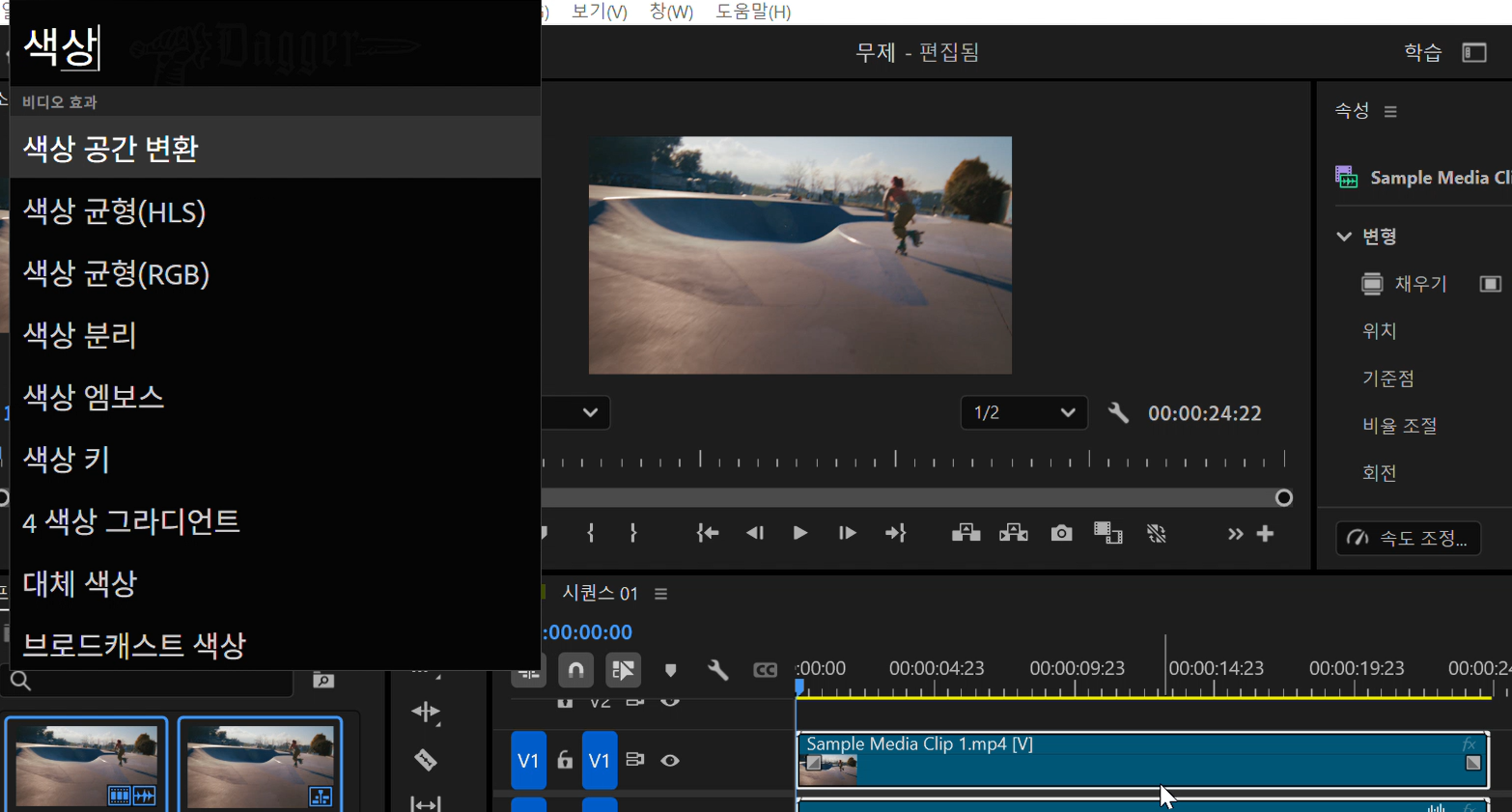
- One-click apply: Hit your assigned shortcut, and a black search bar pops up in the center of the screen. Type the effect name, hit enter, and it applies instantly to your selected clip. (Works with non-English text too.)
- Smarter organization: Favorite the effects you use constantly and hide the ones you never touch — cutting down on scroll time when you're hunting for something.
📂 Managing Images and Source Files
[Arrow, Portal & Compass]
Bouncing between windows to pull in an image you found online, or hunting for your background music or sound effects folder, eats up more time than you'd think. Three plugins — Arrow, Portal, and Compass — handle this cleanly.
1) Arrow (send web images straight to your timeline)
Arrow drops images you find online directly onto your Premiere timeline. Right-click and copy an image from your browser, hit the Arrow button, and it lands right at your playhead position on the timeline — no "save as," no dragging it into your source bin manually. Downloaded images get auto-organized into a dedicated folder, and you can choose whether it overwrites your current track or drops onto a new one.
2) Portal (one-click shortcuts to your go-to folders)
Portal turns your most-used folders — background music, sound effects, graphics, project files — into one-click buttons right inside Premiere. Just drag a folder into the Portal panel once, and from then on, one click opens it instantly. No more digging through your desktop or file explorer mid-edit. Button colors are customizable too, which makes it easy to color-code by source type.
3) Compass (lock in your render output path)
If you've ever finished rendering a video and had no idea where the file actually went, Compass fixes that. Set your output path once, and every render automatically lands in that same folder from then on. One-time setup, and you never have to double-check or reselect an output location again.
📌 How to Install All Four Plugins at Once
Dagger, Arrow, Portal, and Compass are all made by Knights of the Editing Table. They come bundled with a manager app called SpellBook, which lets you handle shortcuts and settings for all four plugins in one place.
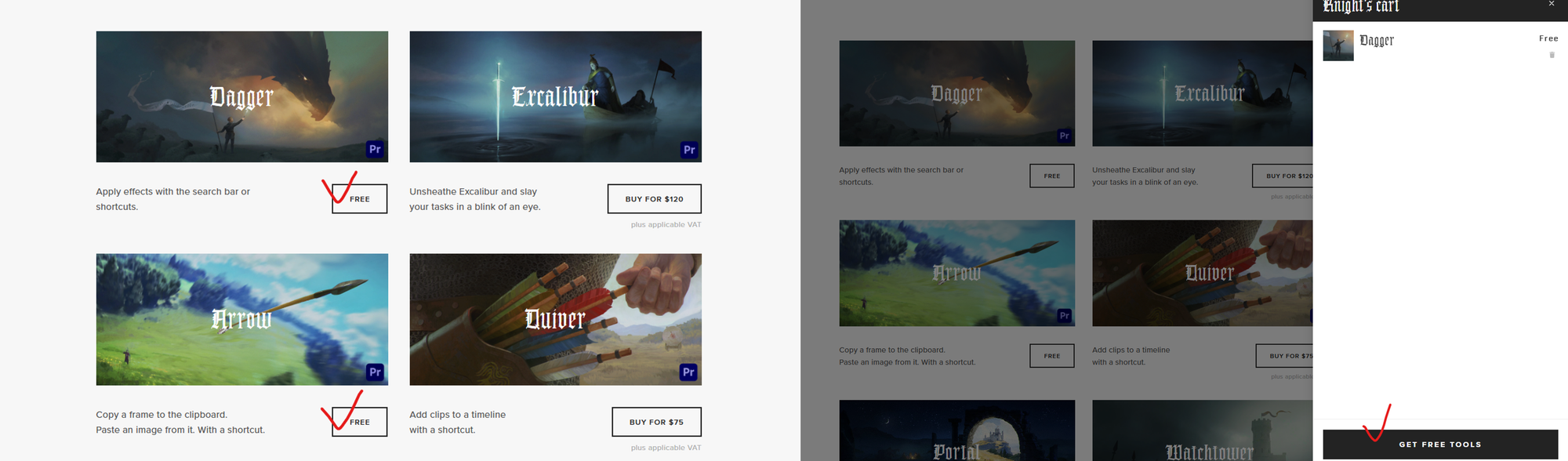
- Go to the Knights of the Editing Table official website
- Select the plugins you want, click GET FREE TOOLS, and enter your email
- Install the free plugins from the email you receive (SpellBook, the manager app, installs alongside them automatically)
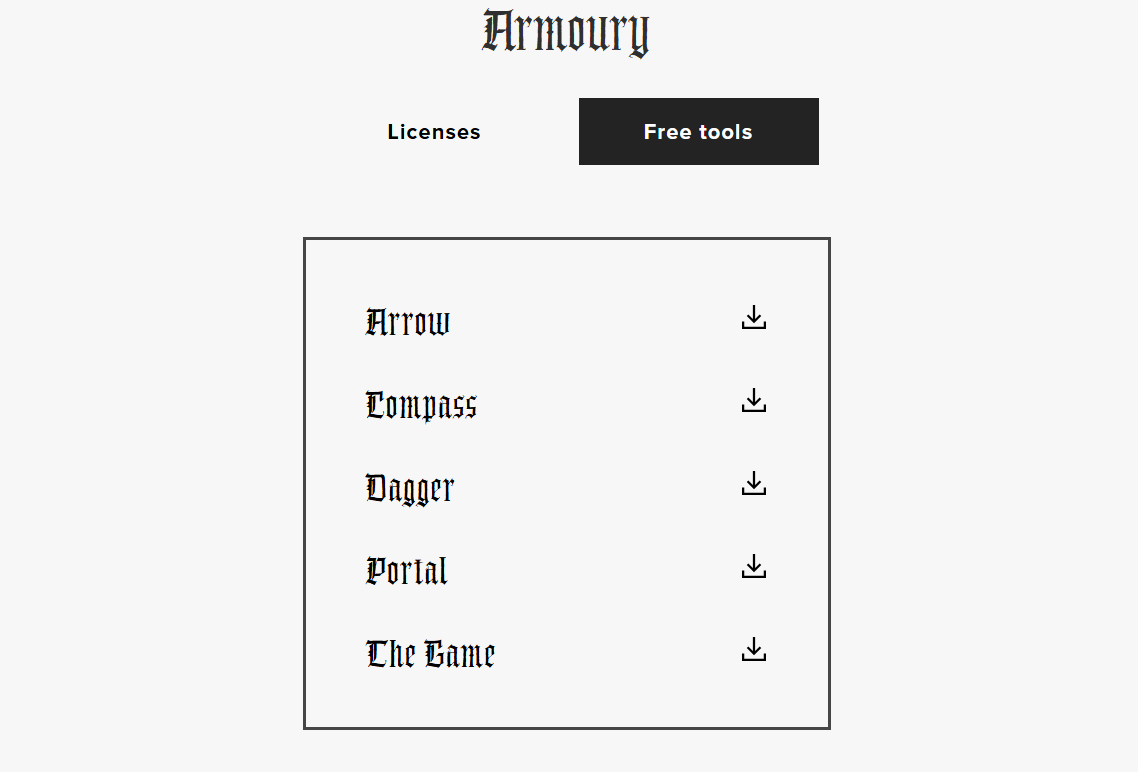
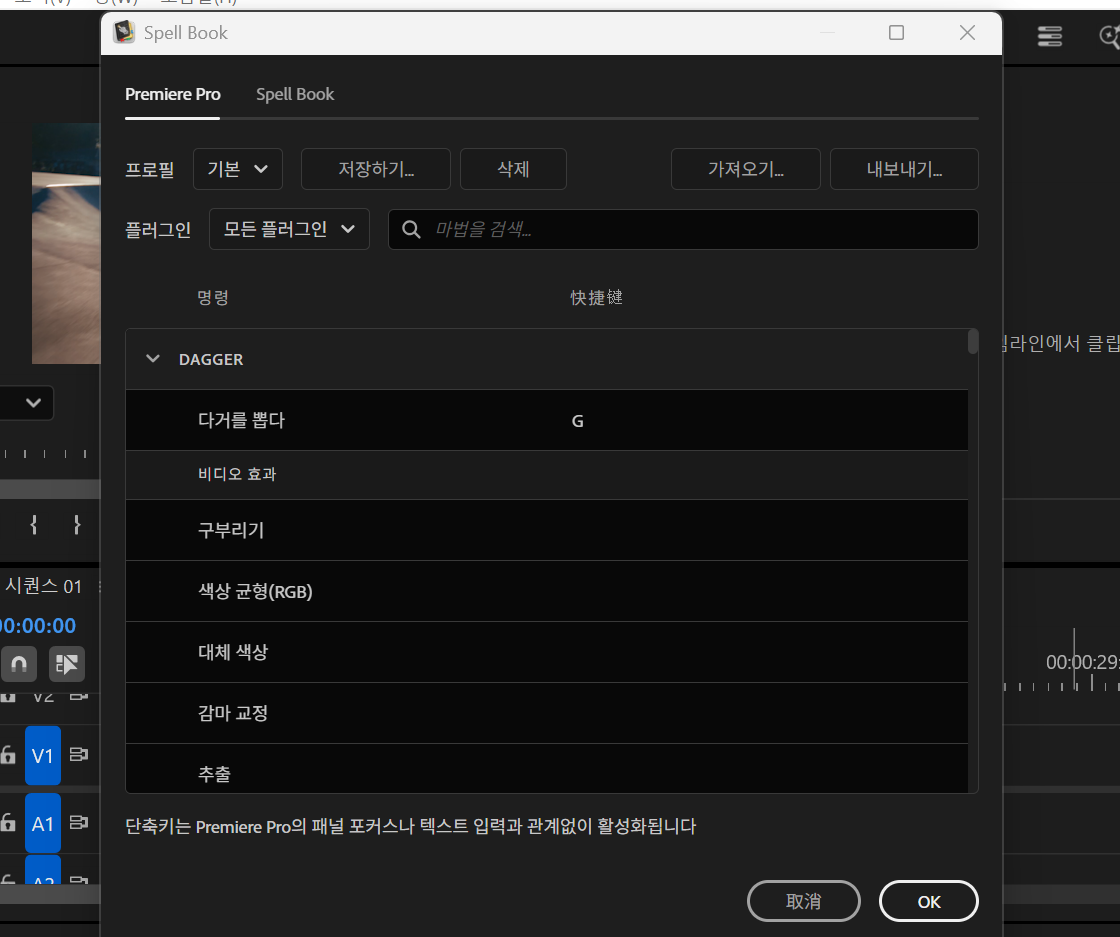
- Open Premiere Pro, go to Window > Extensions > SpellBook in the top menu
- Set up shortcuts and preferences for Dagger, Arrow, Portal, and Compass all in one place — done!
🚀 What Actually Speeds Up Your Edit
Every plugin covered today has one goal: eliminating the repetitive grunt work that keeps breaking your flow. But effects and folders aren't the only things eating up an editor's time. Finding the right moment inside long raw footage is just as painful — scrubbing through an entire timeline just to find one interview answer or the exact second a product appears on screen.
Heimdex: find the scene you need, no uploading required
Heimdex lets you instantly find the moment you're looking for in long footage — no scrubbing, no uploading required. Just type what you're looking for in plain text — "the part explaining the product's benefits," "the scene where pricing comes up," "where the talent is smiling" — and it jumps straight to that moment. No uploading footage anywhere, no worrying about where your files end up.
On top of that, it automatically finds the highest-engagement moments and turns them into short-form clips, and it can auto-blur personal information, license plates, and third-party faces.
💡 Still scrubbing through a 10-hour video to find one moment?
Cutting down time spent on repetitive searching, blurring, and short-form editing alone can boost your production efficiency by 3x or more. See for yourself how much faster your team's archive could move with Heimdex.
Just book a consultation now and get a custom 1-month free PoC plus free archive setup. Let Heimdex handle the repetitive busywork — you focus entirely on making the video great.
⚡ Set up automated video search for your team in 30 seconds
