


Got Hours of Travel Footage but No Idea Where to Start Editing? Here's How to Finish Your Vlog in 3 Steps

After a trip, your phone's camera roll fills up fast — the moment you leave home, the scenery, the meals, the people you traveled with, all captured on video. But turning that footage into an actual travel vlog is a different story.
Open an editing app and you don't know where to start. You have to compare near-duplicate clips, cut the shaky ones, pick the usable moments, and put them in order. Any clip with dialogue needs captions typed in by hand. If a stranger's face ends up in frame, you need to blur it out too.
You shot plenty of footage, but once the full list of editing tasks comes into view, it's easy to push the project off — and just like that, the trip you wanted to remember never becomes a finished video.
Heimlog is an AI editing tool built for exactly this problem. Upload your footage, choose an editing style, and the AI selects the scenes and builds a first draft automatically — including the two most time-consuming parts, captions and face-blurring.
The Parts of Travel-Vlog Editing That Take the Longest
1. Reviewing every clip and picking the usable scenes
The first hurdle in editing a travel vlog is reviewing the raw footage. Multiple takes of the same spot, shaky clips, footage with dead time in the middle — it's all mixed together. To find the scenes worth using, you have to load everything onto a timeline and watch it clip by clip.
Picking the scenes isn't the end of it, either. You still need to order them so the trip flows naturally, and trim anything too long or repetitive. The more footage you have, the longer this step takes — by far the most time-consuming part of the process.
2. Adding captions while listening to every line of dialogue
If your vlog includes conversation, captions are non-negotiable. You have to replay the audio repeatedly, type out what's said, and time each caption to match. If you filmed somewhere noisy, making out the dialogue takes even longer.
There are plenty of AI captioning tools now, but bouncing between multiple apps to get the job done is its own kind of hassle.
3. Blurring faces in the footage
Footage shot at tourist spots or on the street almost always catches a stranger's face somewhere. And if a friend or family member who joined the trip doesn't want to be shown, you need to blur them out too, scene by scene.
Finding each face manually, applying the blur, and adjusting its position as the person moves takes real patience — and if a scene has a lot of people or frequent cuts, the workload multiplies.
Finishing a Travel Vlog with Heimlog: Three Steps
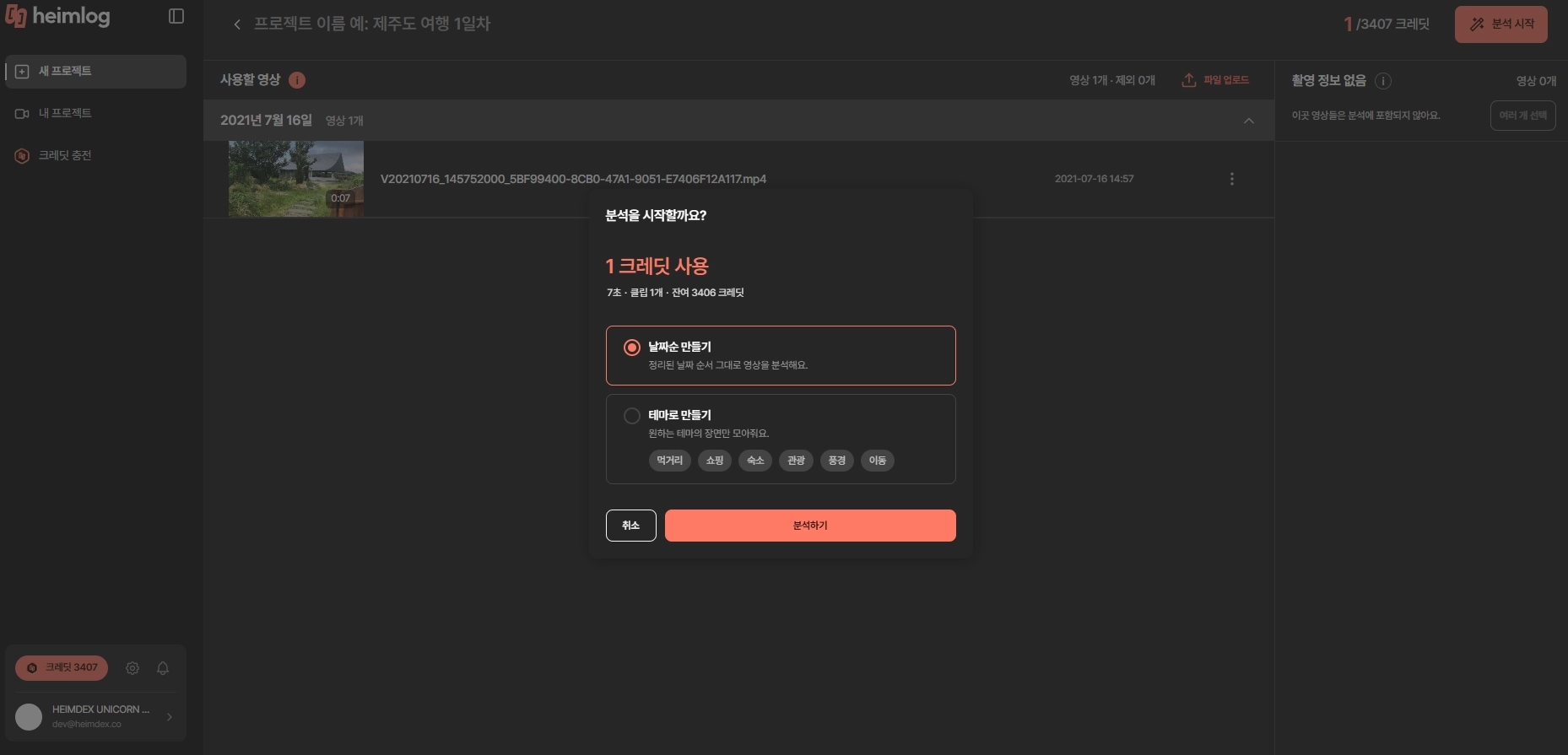
Step 1. Pick an editing style and let automatic cut editing begin
The most daunting part of starting a vlog edit is deciding which scenes to use out of everything you shot.
With Heimlog, you just upload your travel footage and choose an editing style. The AI analyzes your clips based on that style and builds a first-draft vlog from the usable scenes.
Instead of staring at a blank timeline, you start by reviewing a completed draft and checking the overall flow. Keep the scenes you like, and only touch up the parts that don't match your vibe.
Step 2. Let AI recognize speech and add captions automatically
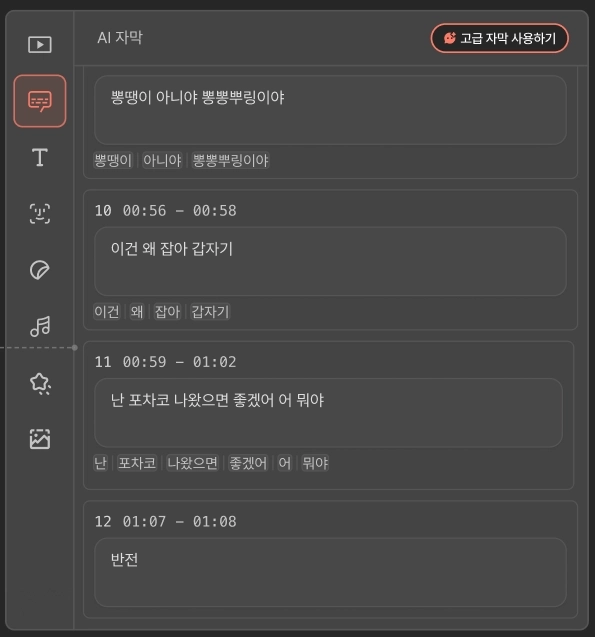
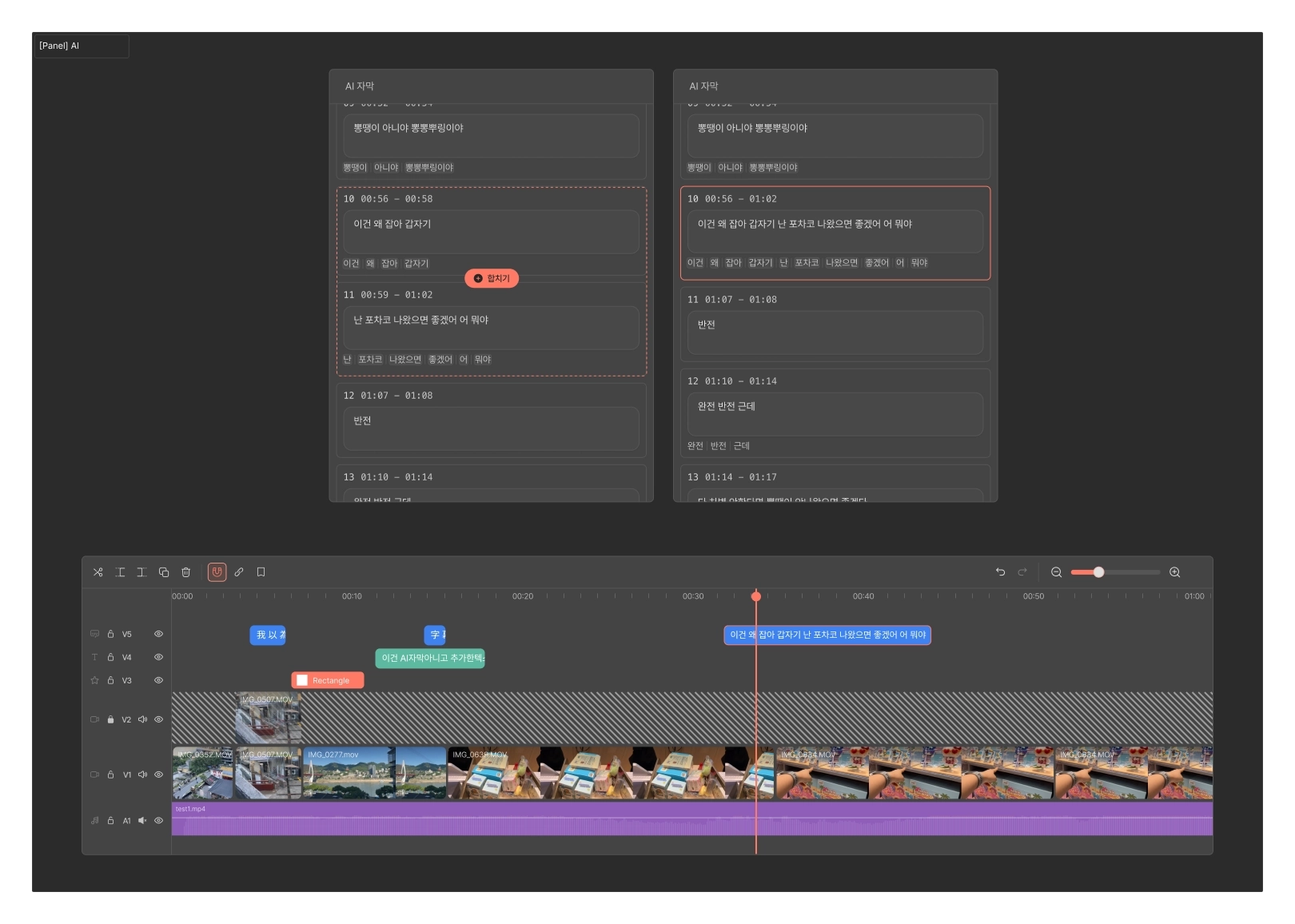
You don't have to transcribe conversations from your trip, or narration you recorded on camera, by hand. Heimlog's AI captioning feature recognizes speech in your footage and adds captions automatically — and you can still merge or split them however you like.
It works especially well for:
- Scenes introducing a destination
- Scenes where you're reacting to food or your accommodation
- Conversations with travel companions
- On-camera recaps of your day
- Conversations in English with people you meet abroad (automatic English captions supported)
Before exporting, just do a light check of proper nouns — place names, dish names — in the AI-generated captions.
Step 3. Let AI analyze faces in your footage and apply blur automatically
Heimlog's AI blur feature automatically analyzes faces in your footage and applies blur, cutting way down on the repetitive work of finding and covering each person by hand, scene after scene.
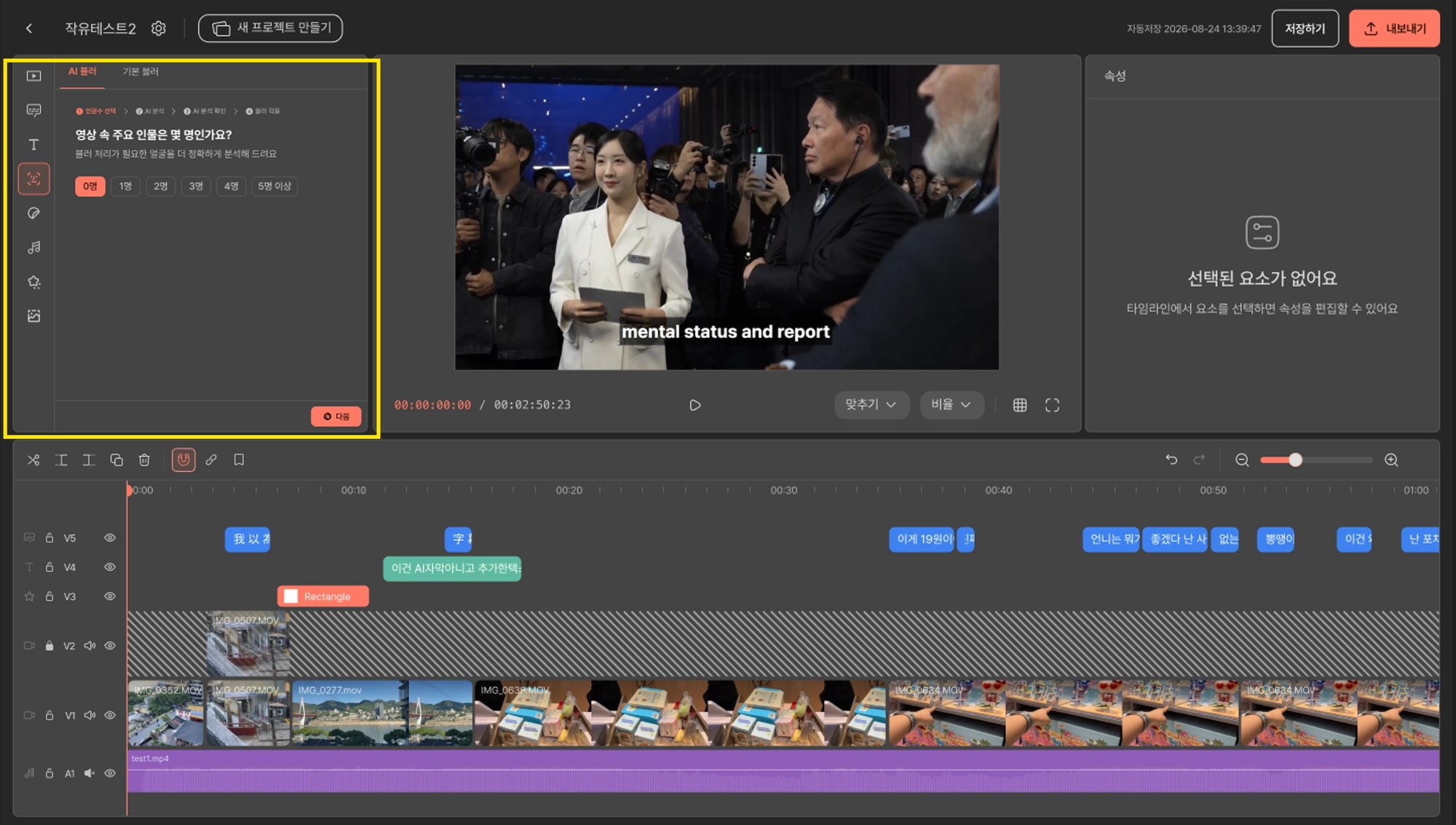
For accuracy, it follows this process:
- You confirm how many main subjects are in the footage
- The AI analyzes faces based on that count and identifies the main subjects
- You select which of those people you want blurred, and the blur is applied automatically
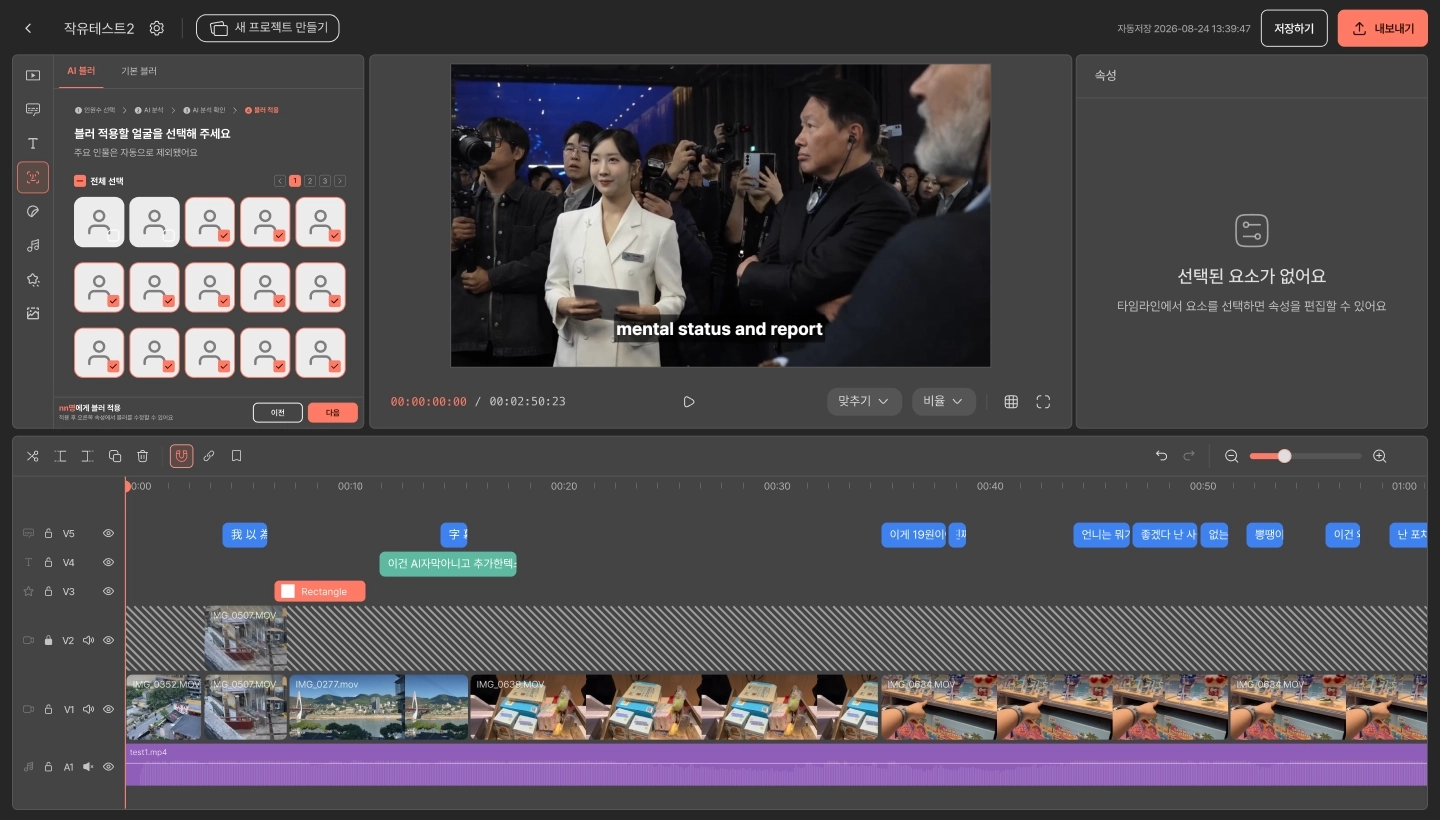
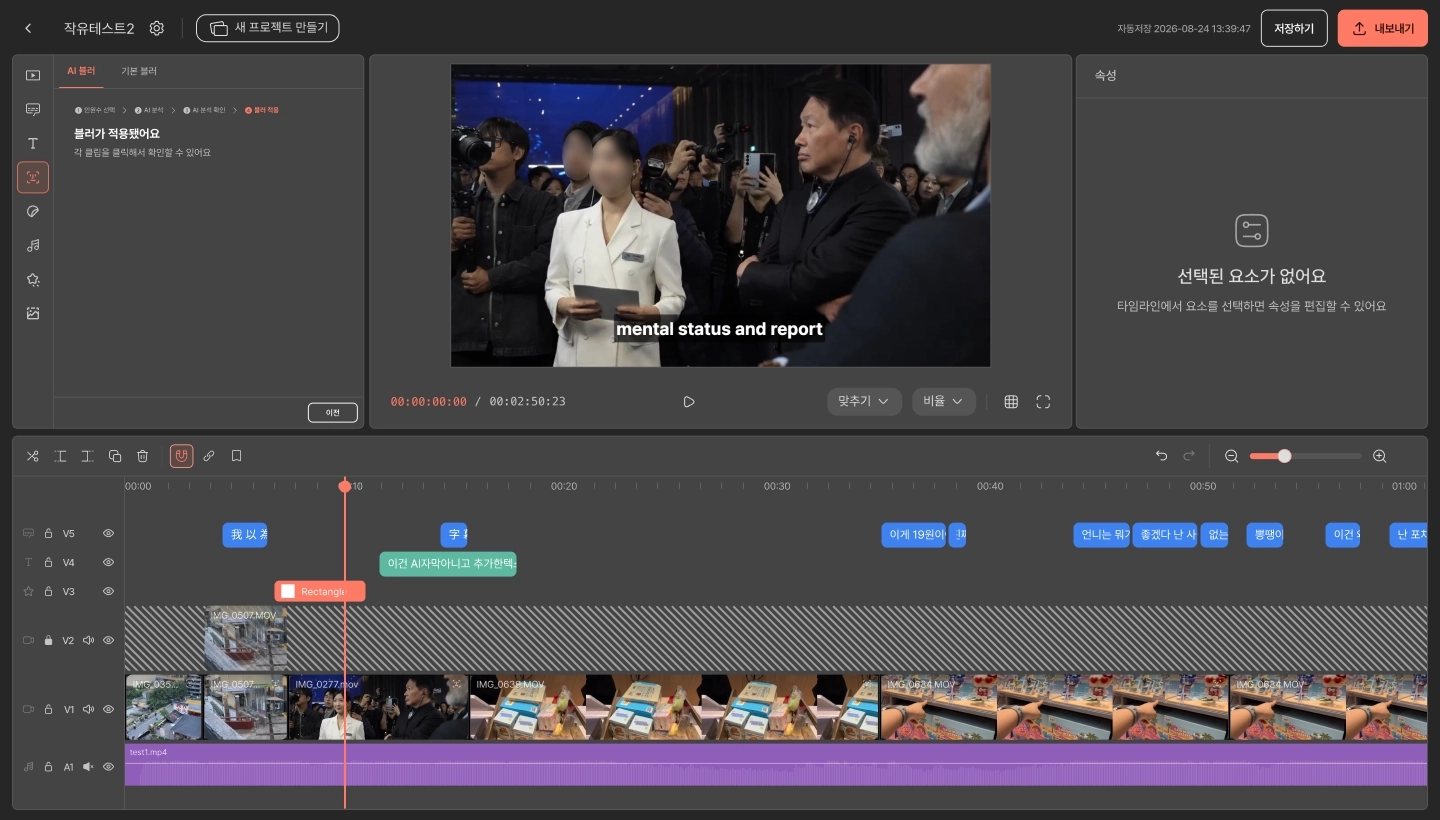
It's especially useful for:
- Footage from crowded tourist spots, markets, or festivals
- Footage shot inside cafes and restaurants
- Footage shot on the street or on public transit
- Footage where you'd rather not show a friend or family member's face
After the blur is applied, just do a quick check of any spots where someone moved fast or only their profile is visible, and you're done.
How Raw Travel Footage Becomes a Finished Vlog
Shoot multiple scenes during your trip. Capture short clips of the moments worth remembering — not just scenery, but travel, meals, your stay, and conversations too.
Upload your footage to Heimlog. Upload the files as they are — no need to sort them into folders or organize anything first.
Choose an editing style. Pick anything from a chronological highlight reel to a themed cut focused on food, shopping, or sightseeing, to match the mood you want.
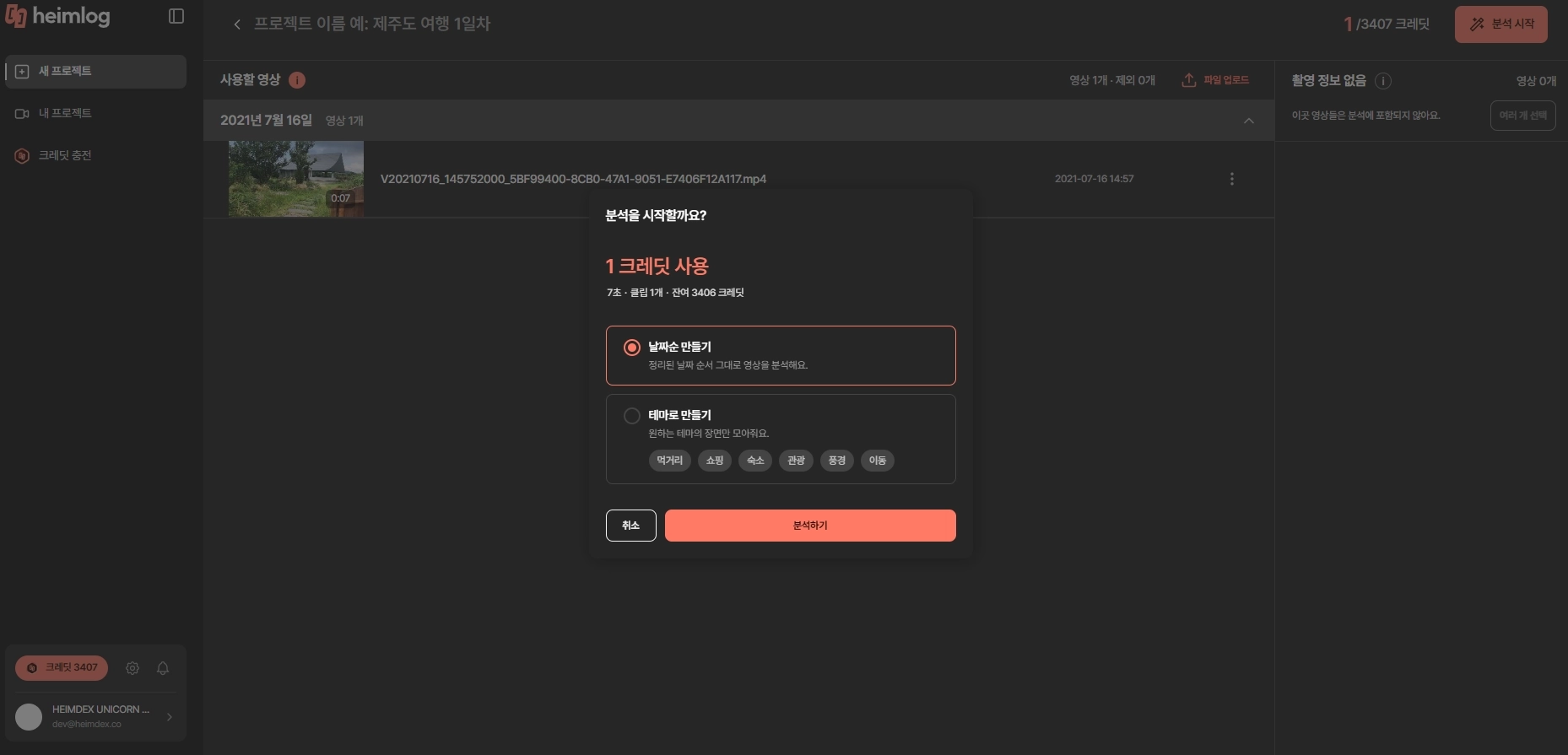
Review the auto-generated draft. Check the scenes, captions, and blur the AI applied, and fine-tune the details. You can also apply trending caption templates and royalty-free background music right in the app.
Upload your finished vlog to your channel. Export the final cut and share it on YouTube or Instagram. Editing that used to take a full day now takes about 30 minutes.
Who Heimlog Is Built For
- People juggling multiple editing apps: Cutting, captions, background music, and blurring — handle all of it in one place with Heimlog.
- Working professionals with no time to edit: Can't bring yourself to open a complicated editing app after work? Just upload your footage, and AI handles the draft, captions, and blurring for you, freeing up hours of your time.
- Anyone who burns all their time picking scenes: Use the AI-generated draft as a starting point and finish the job fast.
- First-time vlog editors: No need to learn a complex editing tool — just pick a style, and you can make a vlog.
- Anyone who shoots a lot but keeps putting off editing: Turn the footage sitting in your camera roll into a vlog draft right now.
Frequently Asked Questions
Q. Does Heimlog make the whole vlog automatically?
A. After you upload your footage and pick a style, the AI curates the scenes and generates a draft. We recommend doing a light check of the overall flow, captions, and blur before using the final version.
Q. Can I choose the editing style myself?
A. Yes. Whether it's a chronological highlight reel or a themed edit, the AI builds a customized draft to match the style you pick.
Q. Does it turn spoken dialogue into captions too?
A. The AI captioning feature recognizes speech and generates captions automatically. The "advanced captions" feature can refine the result even further.
Q. Are other people's faces blurred automatically too?
A. Yes — the AI recognizes faces in your footage and applies blur. You can blur everyone in a scene, or select specific people to blur.
Q. Is it free to use?
A. Sign up for early access now, and everyone gets credits to make up to two travel vlogs for free.
Turn the Travel Footage in Your Camera Roll into a Vlog
Making a travel vlog is exhausting from the start — just picking usable scenes is tedious enough on its own, and adding captions and blur on top of that is often what makes people give up.
Upload your travel footage to Heimlog and pick an editing style. AI-powered cut editing, captions, and blurring take most of the editing burden off your hands. If you've got travel footage sitting unedited, this might be the moment to finally turn it into a finished vlog — for free.