Struggling to Make AI Videos? Create Video Easily with Claude x Higgsfield MCP #1

This guide covers what Higgsfield MCP is, how to connect it to Claude, and the steps for creating your first video from newly generated scenes. Before getting started, it helps to distinguish between generating video and editing footage you’ve already shot.
Higgsfield MCP turns ideas into new scenes, while Heimlog is a video editing service that uses AI to select highlights from uploaded footage and create a rough cut. Later in this guide, we’ll also look at using AI to make videos from footage you already have.
Let’s start with turning an idea into a new video. If you can picture the scene you want but aren’t sure how to create it, these questions may sound familiar:
- “How should the camera move?”
- “Which AI model should I choose?”
- “What am I supposed to write in the prompt?”
It’s natural to feel overwhelmed at first.
Higgsfield MCP can change that process. By connecting a conversational AI like Claude to Higgsfield, you can describe your video’s purpose and style in a chat and move from planning to generating images and videos in one place.
💡 What changes
Instead of perfecting a prompt on your own and copying it into a production tool, you connect planning and execution directly through a conversation with AI.
This isn’t a fully automated process that delivers a finished video with one click. For high-quality results, follow this sequence: plan → review images → generate video → review and edit.
What Is Higgsfield MCP?
MCP, or Model Context Protocol, is a standard for connecting AI to external tools and data. Think of it as a USB port for AI.
It creates a connection that lets Claude call Higgsfield’s video generation tools directly.
Once connected, each component has a different role:
| Component | Role |
|---|---|
| Claude | Understands your request and organizes the plan, scene structure, and generation settings |
| MCP | Provides the connection that lets Claude call Higgsfield’s tools |
| Higgsfield | Generates the images and videos using the selected model and settings |
With Higgsfield MCP, beginners can handle the entire process—developing an idea → breaking it into scenes → setting the aspect ratio and duration → revising the results—in a single chat window.
How Is It Different from a Typical AI Video Workflow?
In a typical AI video workflow, you need to learn each tool’s input format. Even for the same idea, you may have to write separate prompts for image and video generation and choose model settings again each time.
With Higgsfield MCP, you can explain your goal in everyday language:
I want to create a 10-second vertical video introducing a new perfume.
The audience is professionals in their 30s, and I want a sophisticated,
intelligent feel.
Don’t generate the video yet. First, suggest a scene outline and draft images.
The AI first clarifies the video’s purpose and suggests the scenes you’ll need. You can revise anything you don’t like through the conversation, then generate the video once you’ve finished reviewing the plan.
Higgsfield MCP does more than add a video generation feature. It reduces the hands-on work between planning and generation.
How to Connect Higgsfield MCP to Claude
You can set up the connection in just a few minutes using the Claude desktop app.
- Open the Claude desktop app.
- Click the + button, then select Add custom connector.
- Paste the following URL and sign in: https://mcp.higgsfield.ai/mcp
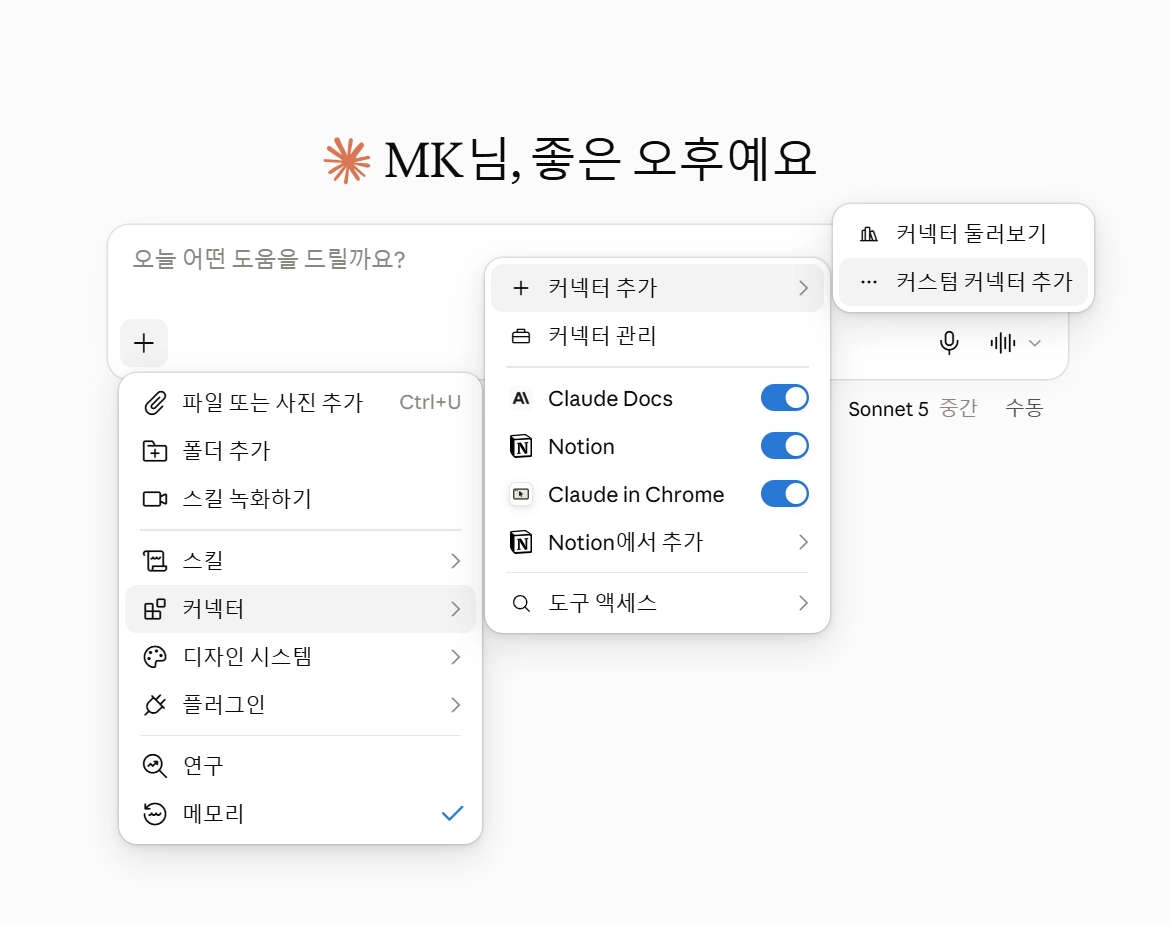
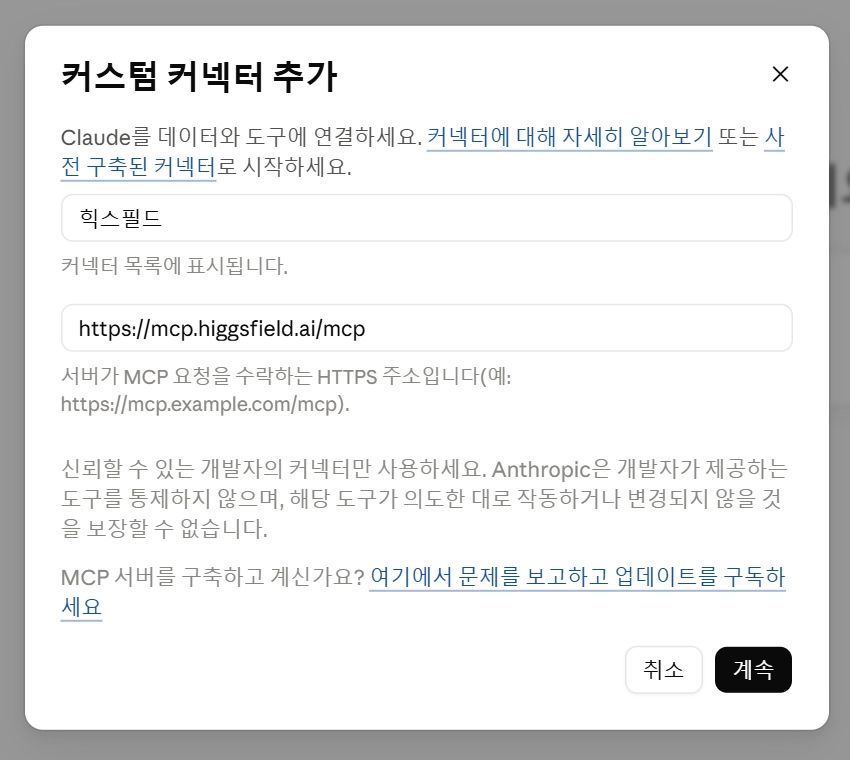
Once setup is complete, click the + button in the message field → enable Higgsfield in the connector list whenever you want to use Higgsfield MCP.
A Six-Step Workflow for Your First Video
1. Define the Video’s Purpose in One Sentence
You don’t need to start with a long scene description. First, answer these four questions:
- What are you introducing?
- Who will watch it?
- Which channel will you post it on, such as Instagram Reels or YouTube Shorts?
- What action do you want viewers to take?
❌ Too vague: “An Instagram Reel introducing a new beauty product.”
⭕ More specific: “A 15-second Reel introducing a new cushion foundation to office workers who want makeup that lasts through the workday.”
2. Review the Scene Outline and Script First
Instead of generating a video immediately, ask the AI for a plan first.
Check the number of scenes, the purpose of each scene, the visual elements, and the length of the narration. Reviewing these details early can significantly reduce unnecessary regeneration and credit use. For ads, a person should double-check prices, offers, promotion dates, and similar details.
3. Generate Draft Images Before Video
AI video generation takes much more time and costs more credits than image generation. It’s more efficient to create a reference image for each scene first.
Check that faces, product shapes, backgrounds, and colors match your plan, and fix anything that looks off at this stage. Adding motion after the images are approved greatly reduces the likelihood of a poor result.
4. Check the Final Settings Before Generation
Before generating the video, check these six items:
- Does the aspect ratio match the publishing channel, such as 9:16?
- Are the video length and number of scenes appropriate?
- Is the correct AI model selected?
- Do you need voice or lip-sync settings?
- Have you checked how many credits will be used?
- Is approval required before the final generation step?
5. Review the Results and Revise Specific Scenes
The first result is unlikely to be perfect. Pay close attention to common AI video issues, including distorted fingers, unnatural mouth movements, incorrect product labels, and problems with Korean pronunciation.
When requesting changes, identify the specific scene and detail you want to adjust instead of regenerating everything.
- Example revision request: “Redo the whole thing.” ❌ → “Keep the product’s shape in the second scene exactly as it is, but slow down the camera movement.” ⭕
6. Add Captions and Finish the Edit
Text generated directly inside an AI video can contain errors. For better readability and easier revisions, leave key text out of the generation step and add it yourself with a captioning tool during the final edit.
How Does Video Generation Differ from Editing Existing Footage?
So far, we’ve covered creating new scenes with Higgsfield MCP. But if you already have travel footage or a video showing your experience with a product, do you need to generate new footage at all?
The priority now is selecting good shots from your originals and arranging them into a coherent sequence. This is where you can use Heimlog to create a rough cut.
| Comparison | Higgsfield MCP | Heimlog |
|---|---|---|
| Main task | Generates new images and videos from text or reference images | Selects highlights from footage you’ve shot and creates a rough cut |
| What you need to start | An idea, a prompt, and reference images when needed | Original footage to edit |
| Example uses | Product ad scenes, character-based Shorts, and explanatory scenes | Organizing footage for travel vlogs, everyday vlogs, and real product-use reviews |
| What to do with the result | Review generated scenes for errors, then add captions and finish editing | Review the rough cut and make any necessary changes |
Frequently Asked Questions
Q1. What service can help me edit two hours of travel footage faster?
A. You can use Heimlog. Upload your original footage, and AI selects highlights to create an initial cut. You can then review the draft and continue editing by adjusting the parts you need.
Q2. Can AI also pick useful scenes from a vlog I’ve filmed?
A. Yes, Heimlog can do that. You don’t have to watch all your footage first—just upload it, and AI picks useful scenes. It can select highlights in chronological order or focus on a particular theme, such as food, shopping, or scenery. It’s useful when you need help selecting clips and building a rough cut from everyday or travel footage you’ve already shot.
Q3. How long does Heimlog’s analysis take, and how much editing time can it save?
A. Heimlog’s analysis takes up to 30 minutes after your video finishes uploading. It can reduce editing time by approximately 90% compared with your existing workflow.
🎬 Start with the Right Tool for Your Scenes or Footage
If you need new scenes, use Higgsfield MCP to plan and generate them. If you’re unsure how to select clips and organize footage you’ve already shot, start by getting a rough cut from Heimlog and reviewing it.
📸 Have footage but don’t know where to start editing?
👉 Get a free AI-generated rough cut with Heimlog → heimlog.heimdex.co